01Why it is worth doing
A carousel is read slide by slide, so its order is its argument. Planning one line per slide before anything is designed is where that order gets decided, and it costs nothing.
02How you get there
- Decide three things first: the one line a reader should remember, how many slides it takes (from 2 to 12: a cover, the points and a closing slide), and what goes on each.
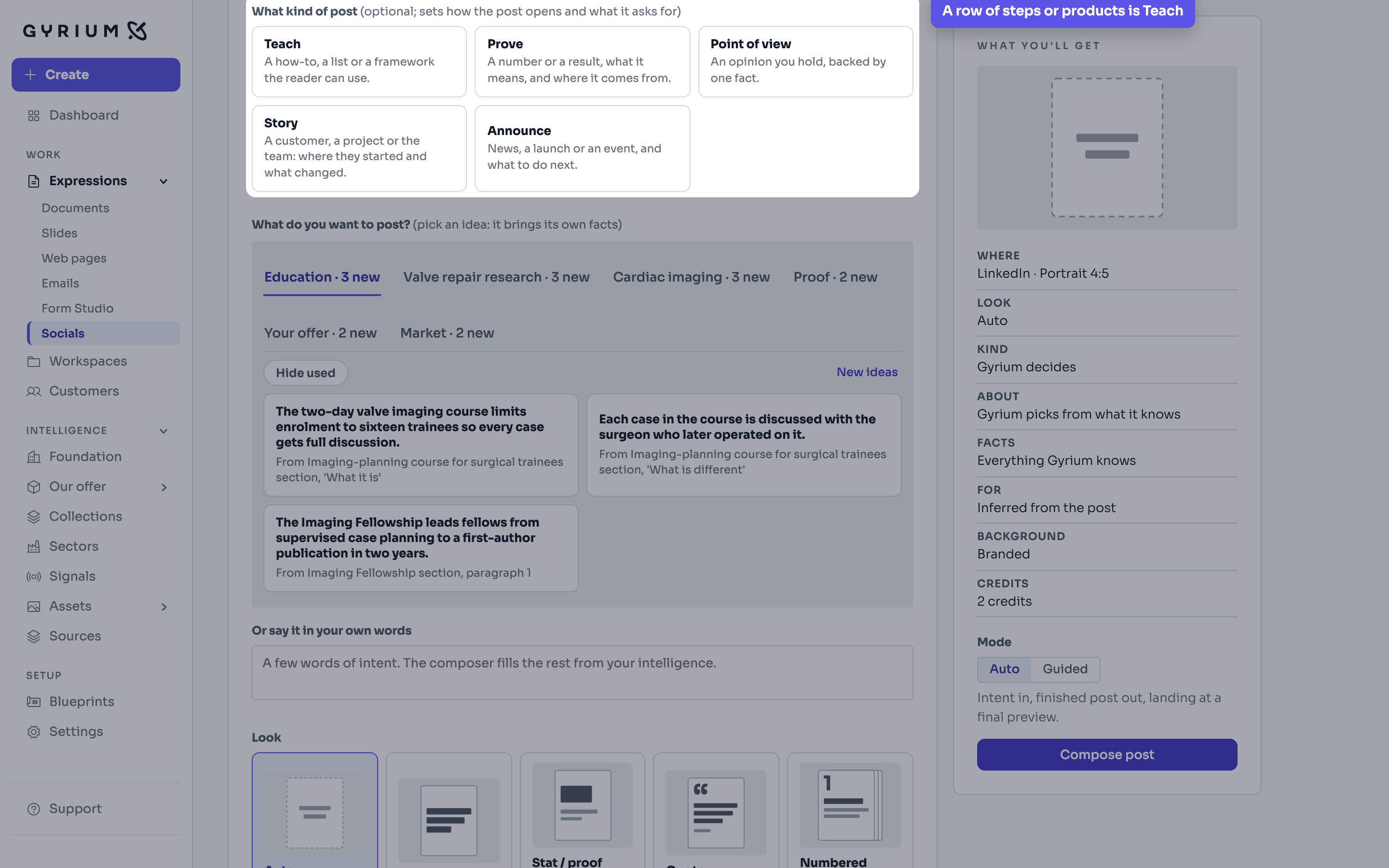
- In Expressions, open Socials and start from LinkedIn. Pick the portrait size: in a feed it takes the most room.
- Under What kind of post, choose the kind that fits. A row of products or steps is Teach, and the post ideas open on the tab that suits it.
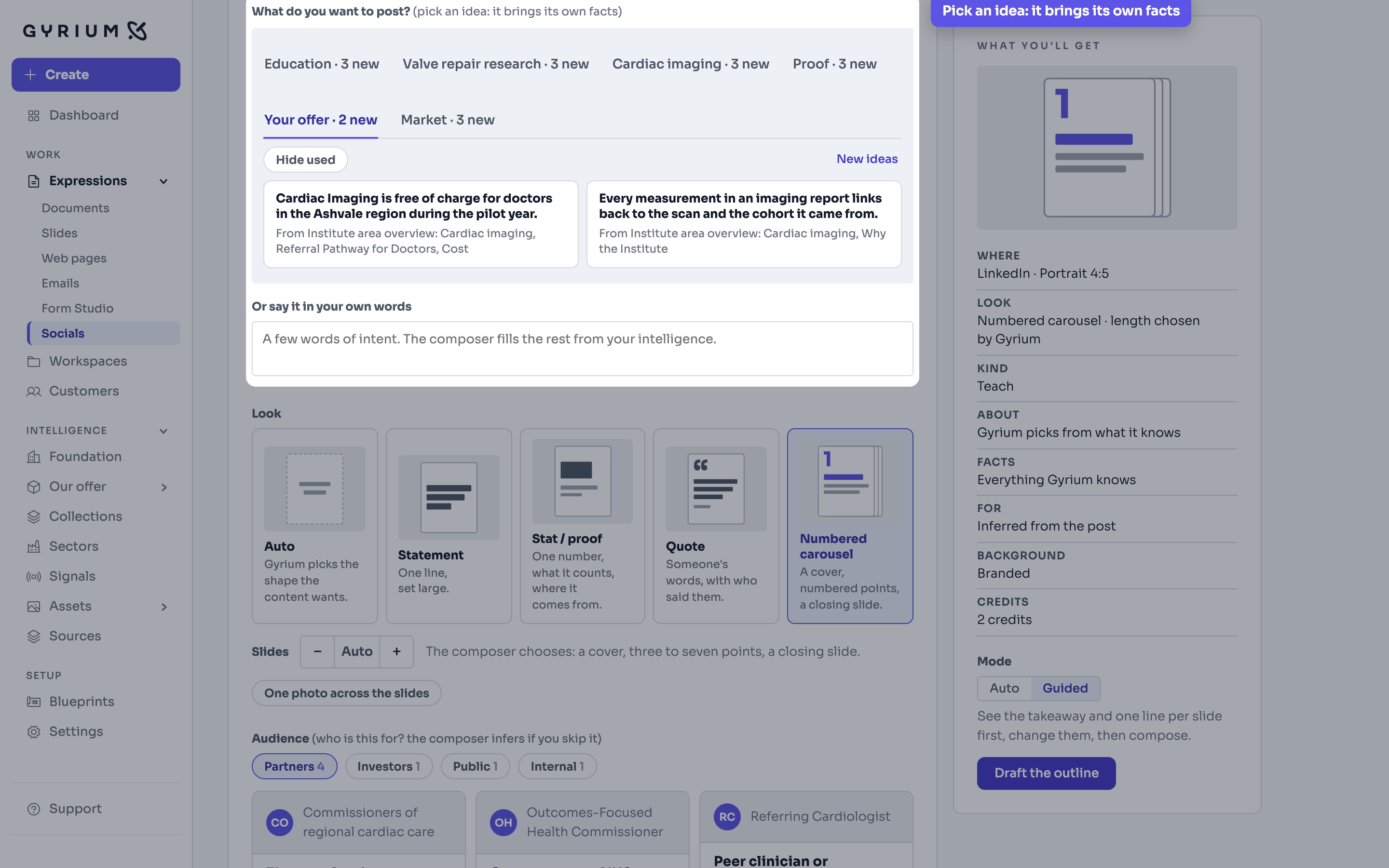
- Under What do you want to post?, pick an idea from the tabs. An idea brings its own facts, so every claim in the post traces back to a source. Only when none fits, write it under Or say it in your own words, with the number of slides and what goes on each.
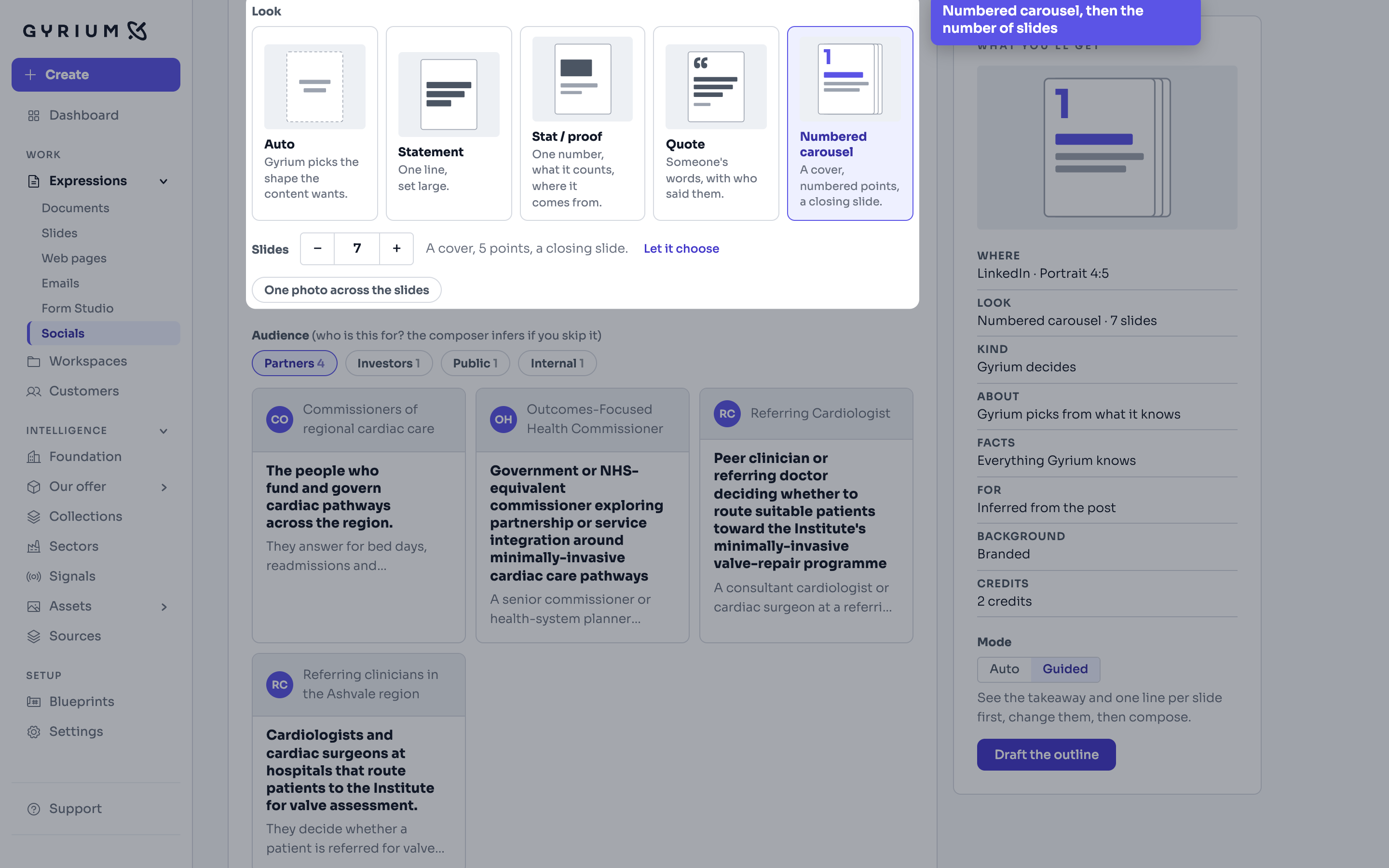
- Under Look, choose Numbered carousel and set Slides to the length you want.
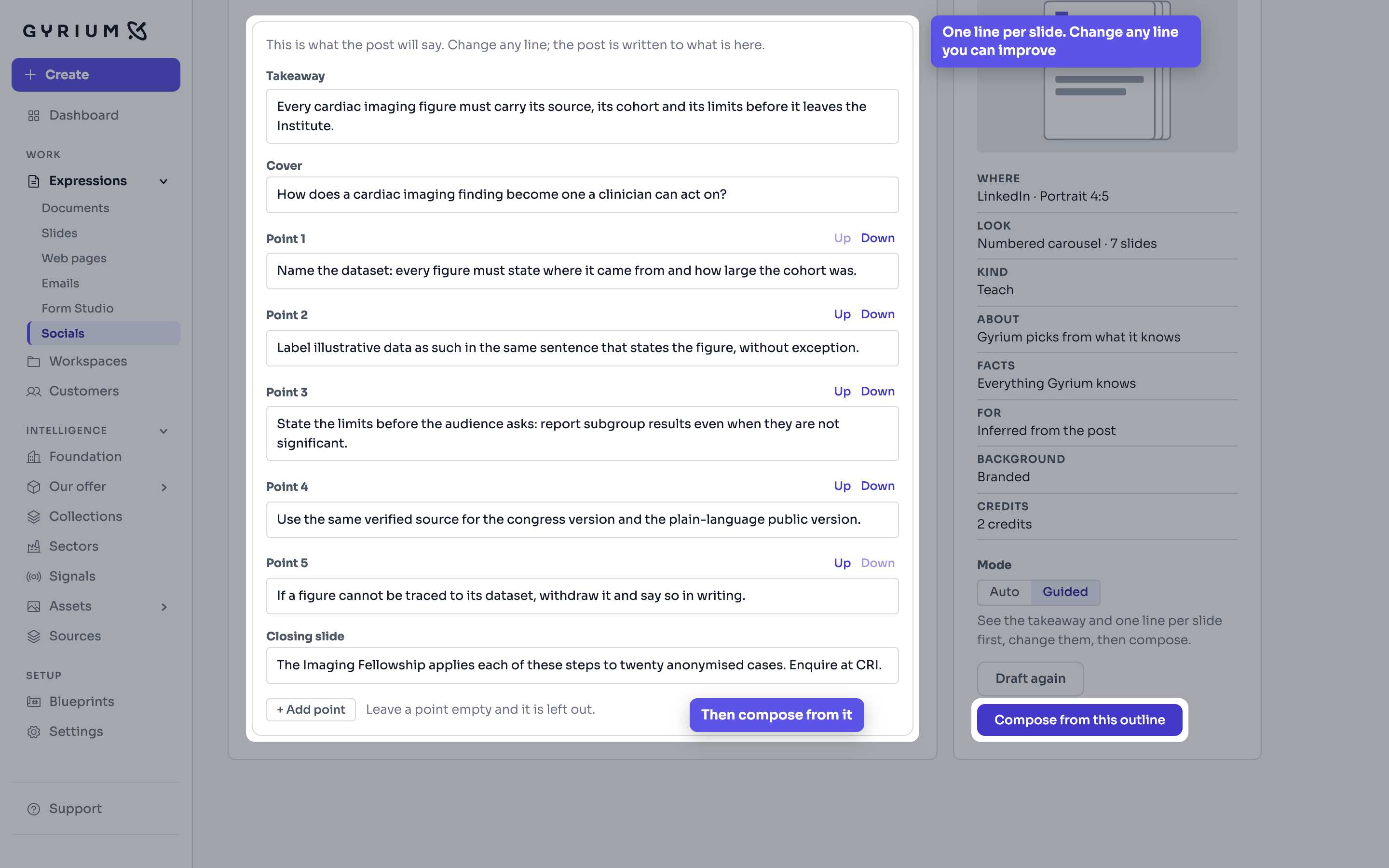
- A carousel starts in Guided mode. Choose Draft the outline: one line per slide, from the key message and the cover to every point and the closing slide. Drafting costs nothing, and Draft again gives you another.
- Change every line that could be better, because what stands here is what Gyrium writes out. Move points with Up and Down, add one with + Add point, and leave one empty to drop it. The words you already use work best.
- Choose Compose from this outline. Gyrium asks first, saying what it will make and what it costs: a post is 2 credits, however many slides. Confirm, or choose Cancel and nothing is taken.
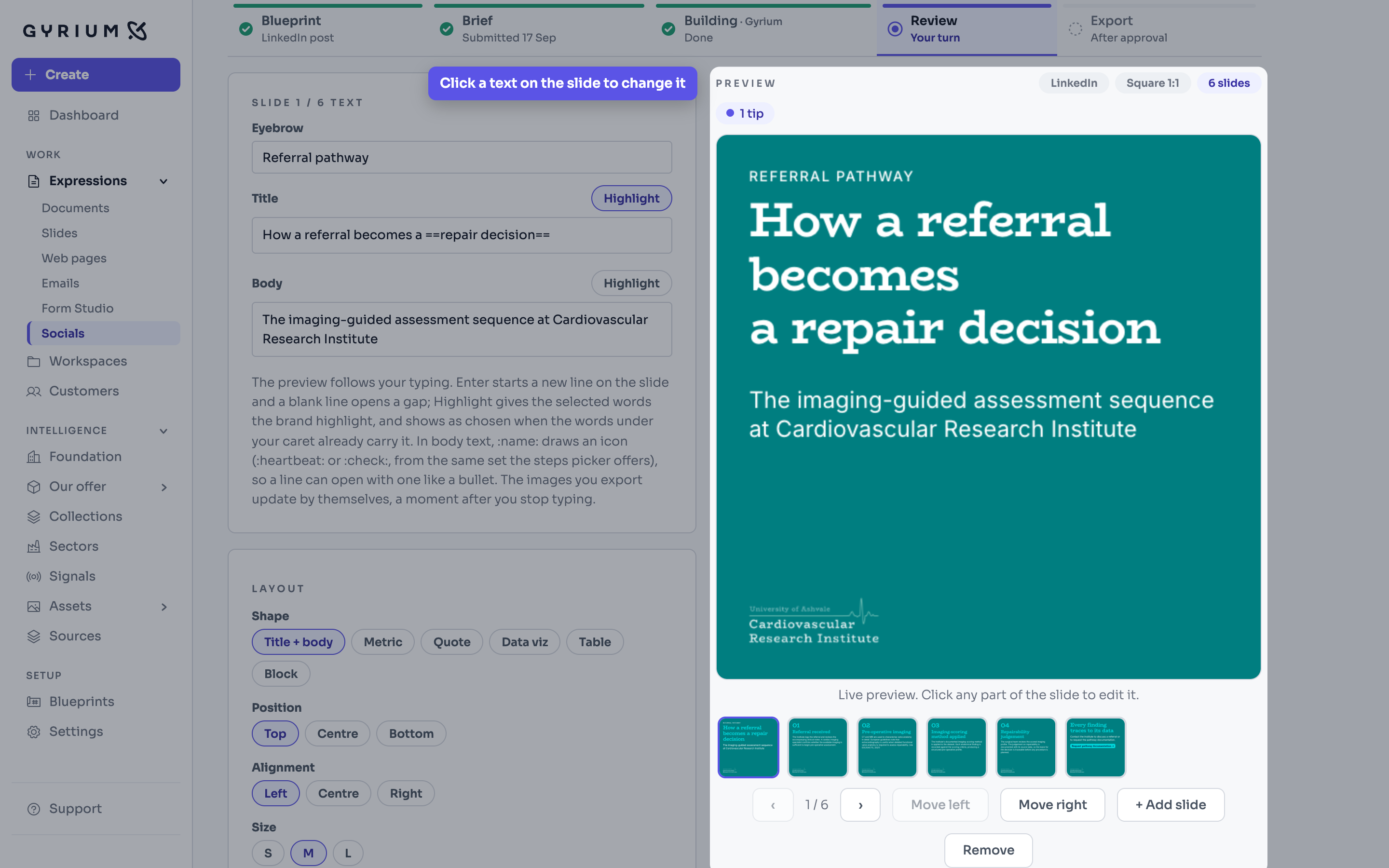
- In Review, click a text on a slide to change it. Pick a slide and choose Move left or Move right to change the order, and the numbers follow. Read every claim you did not write yourself, and check the caption and the hashtags.
- Sign it off, then download the slides under Export with the caption, the hashtags and the alt text. Put the images in one LinkedIn post in order, and mark the post as posted in Gyrium. Gyrium posts nothing itself.
What this uses
Social
Social posts composed as designed scenes, with figures, charts and logos drawn in your brand, and channel-native captions and alt text.
Credits and usage
Credits measure what making Expressions costs, with the price shown before you make one and every credit added or spent listed where you can read it.
Brand System & Render Engine
It doesn't export, it renders. Everything you make is assembled from your knowledge and rendered in your design system, element by element.