01Why it is worth doing
You already have the material. The work is getting it somewhere it can be used more than once.
02How you get there
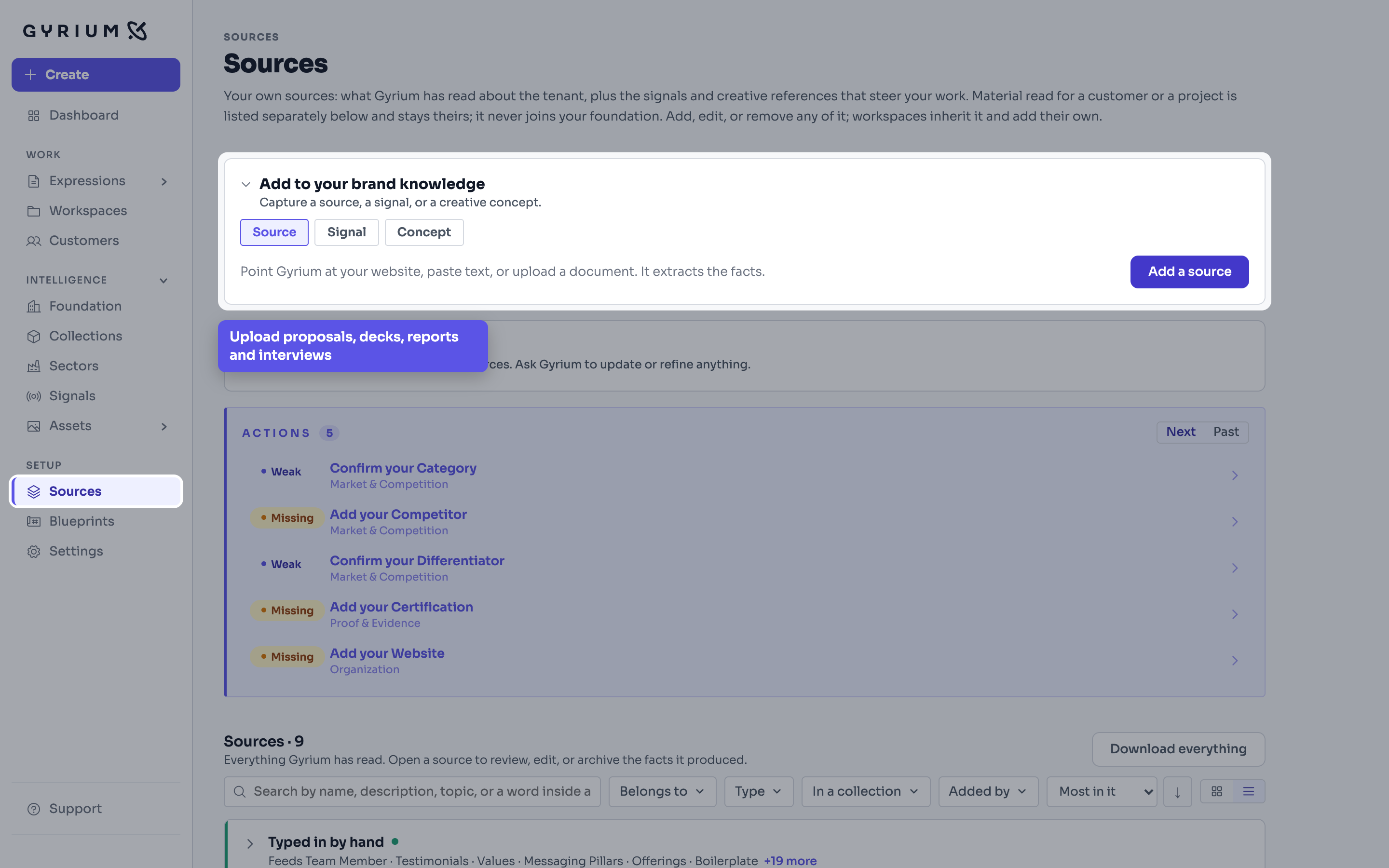
- Upload the documents you already have: proposals, decks, reports, interviews.
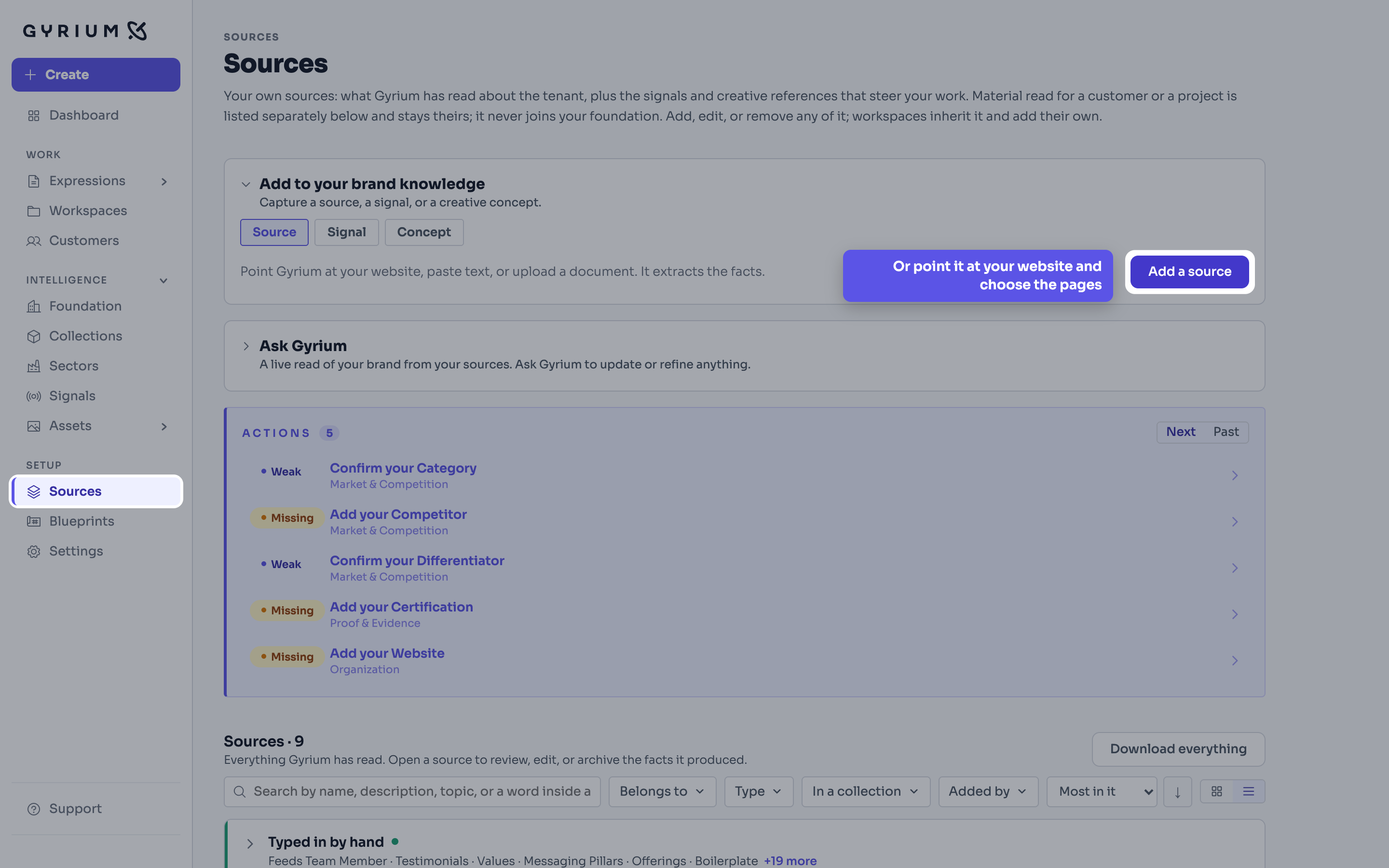
- Import your website, page by page. Gyrium reads the sitemap and you choose what to take.
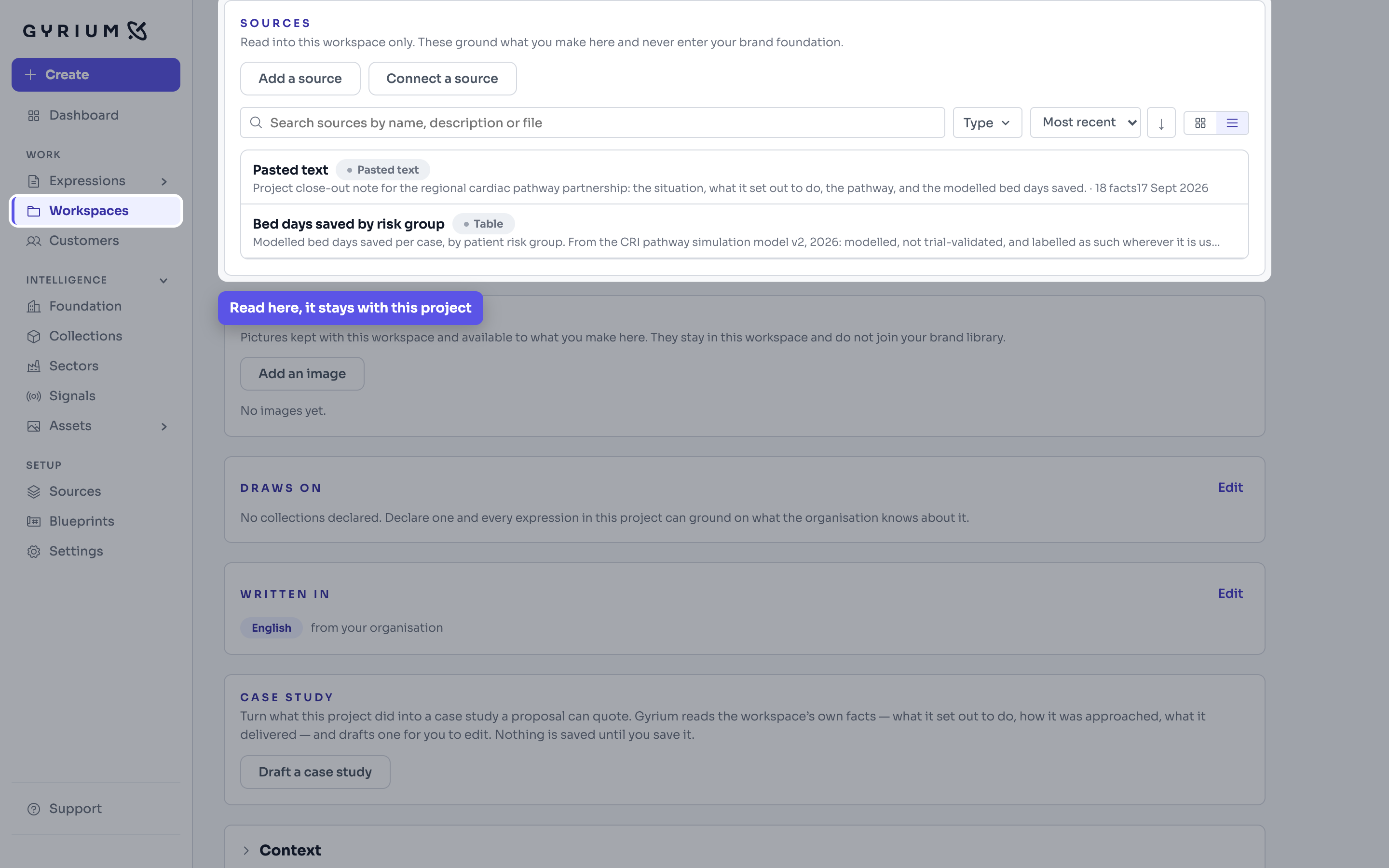
- What it finds is scoped to the project or customer it belongs to, so nothing leaks between them.
- Give each source one line saying what it is, such as the program of an event and its date. It is how you find it again, and how a piece knows what it is reading.
- Use the real material. A placeholder still waiting for its date or a speaker's name is left out, because Gyrium invents nothing.
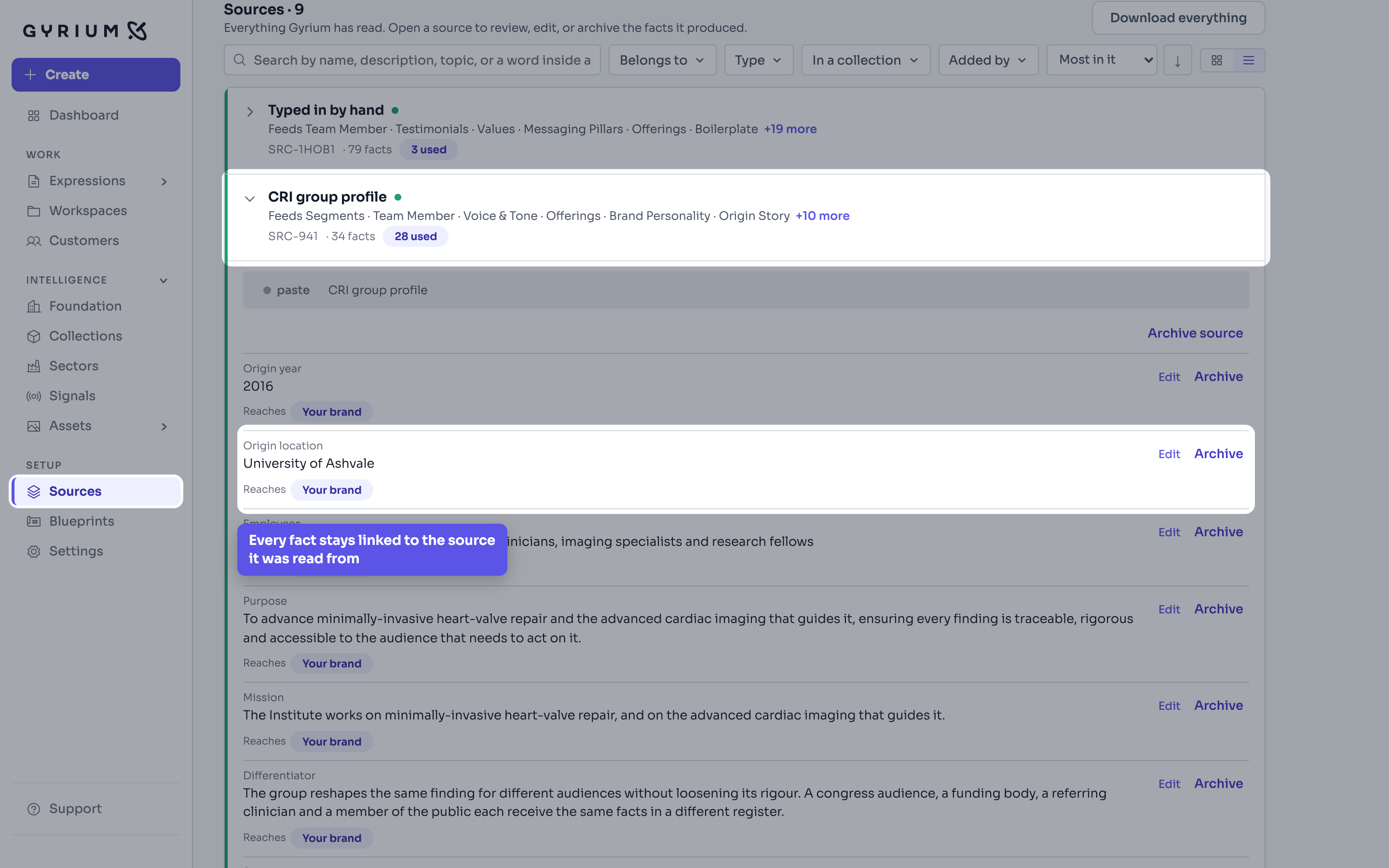
- Review what came out. Every fact keeps a link back to the document it was read from.
- Reading costs credits, by the length of what is read. A source already read costs nothing to use again.
What this uses
Organizational Intelligence
The memory of your organization. Everything it knows, captured as sourced facts, structured by a curated taxonomy, and available to everything you make.
Collections
A collection gathers what your organization knows and says about one topic, such as safety or a law you work under, apart from what you sell, so a piece can be about that topic with or without a product.
Filing and share links
Every Expression files itself by context and names itself properly, and shares as a read-only, on-brand link you can revoke.
Credits and usage
Credits measure what making Expressions costs, with the price shown before you make one and every credit added or spent listed where you can read it.