01Why it is worth doing
Some rooms want a file. Each one is drawn from the version you reviewed, never from a second copy.
02How you get there
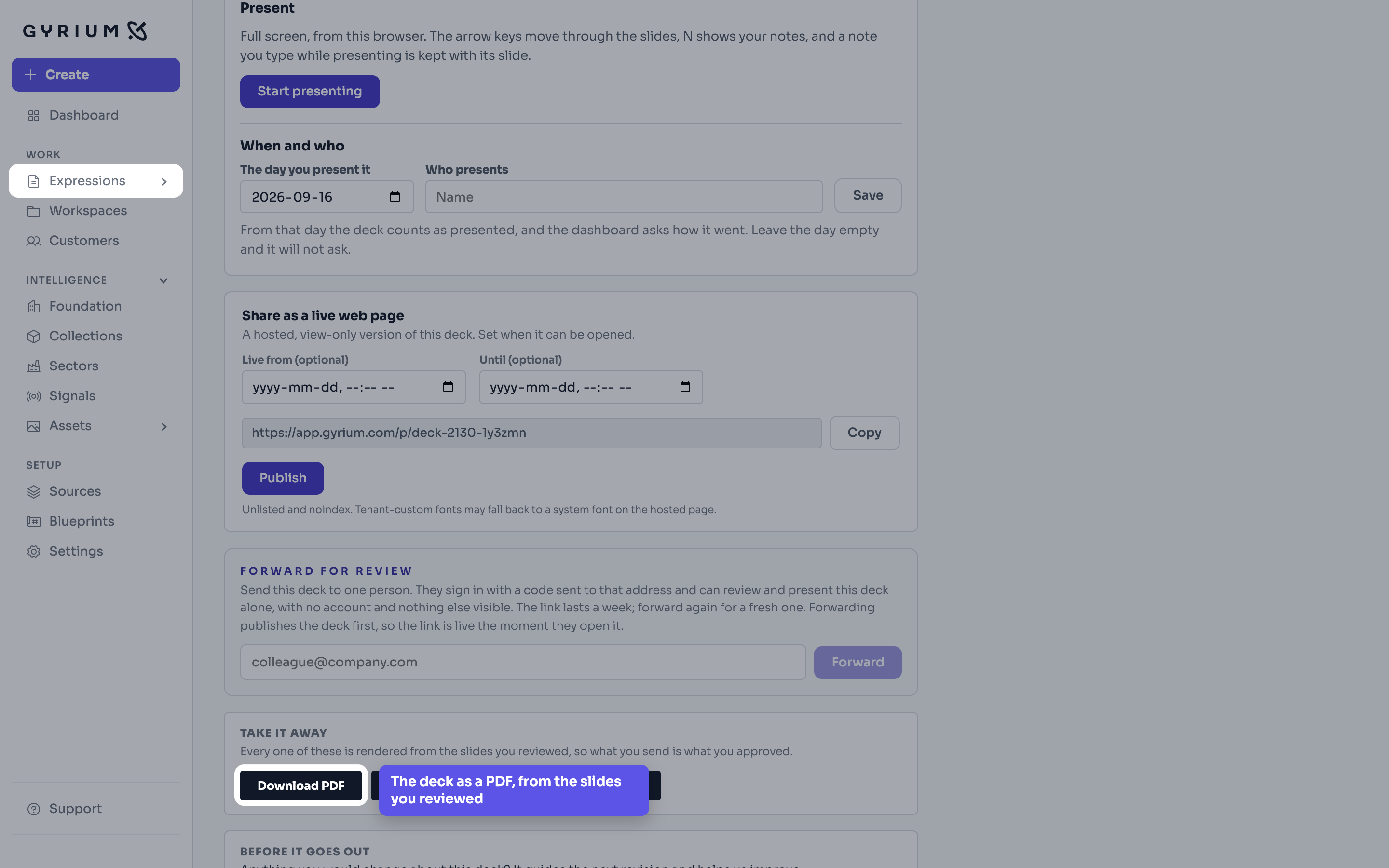
- Take a deck as a PDF, rendered from the slides you reviewed.
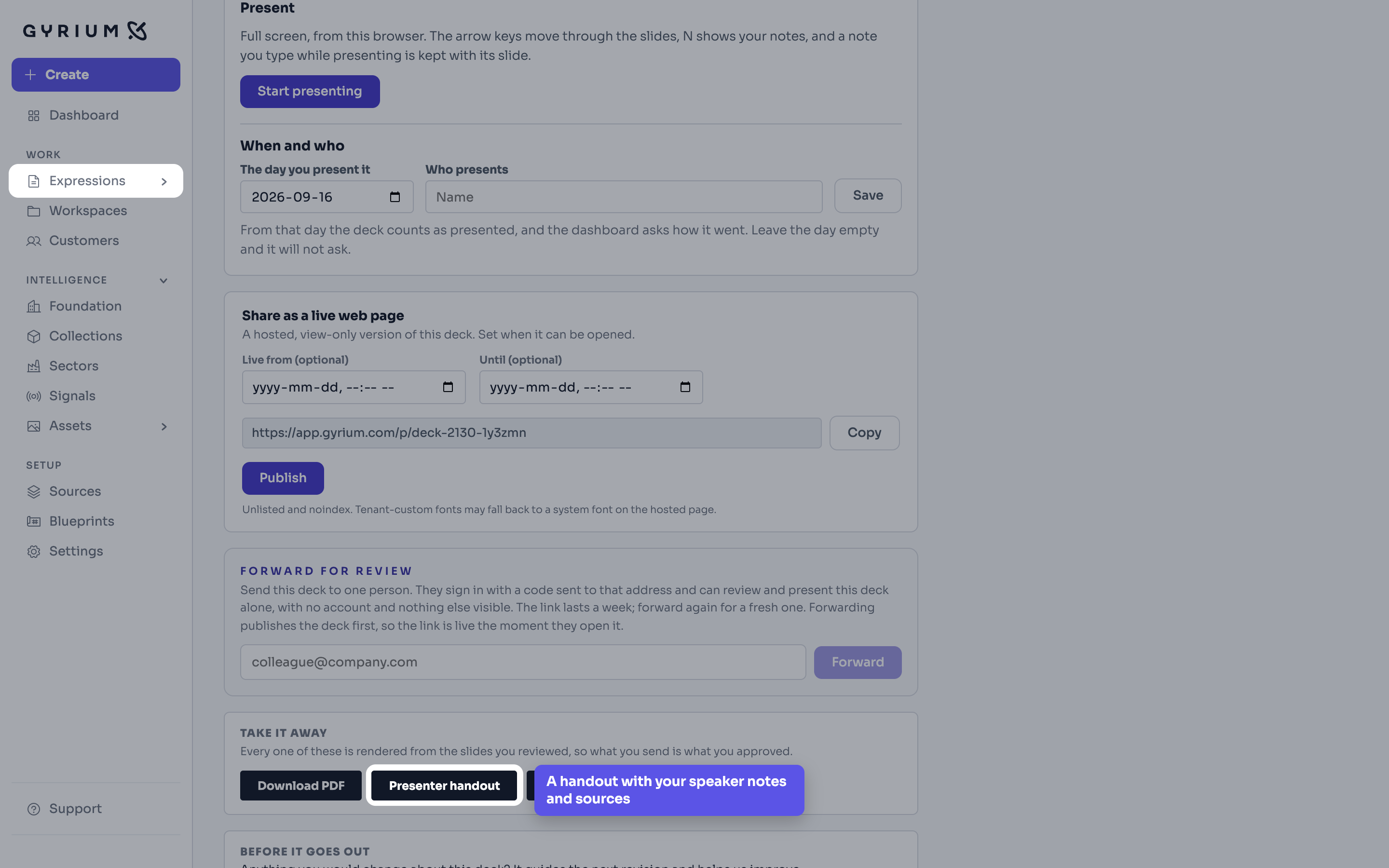
- Take a separate presenter handout carrying your speaker notes and the sources behind each slide.
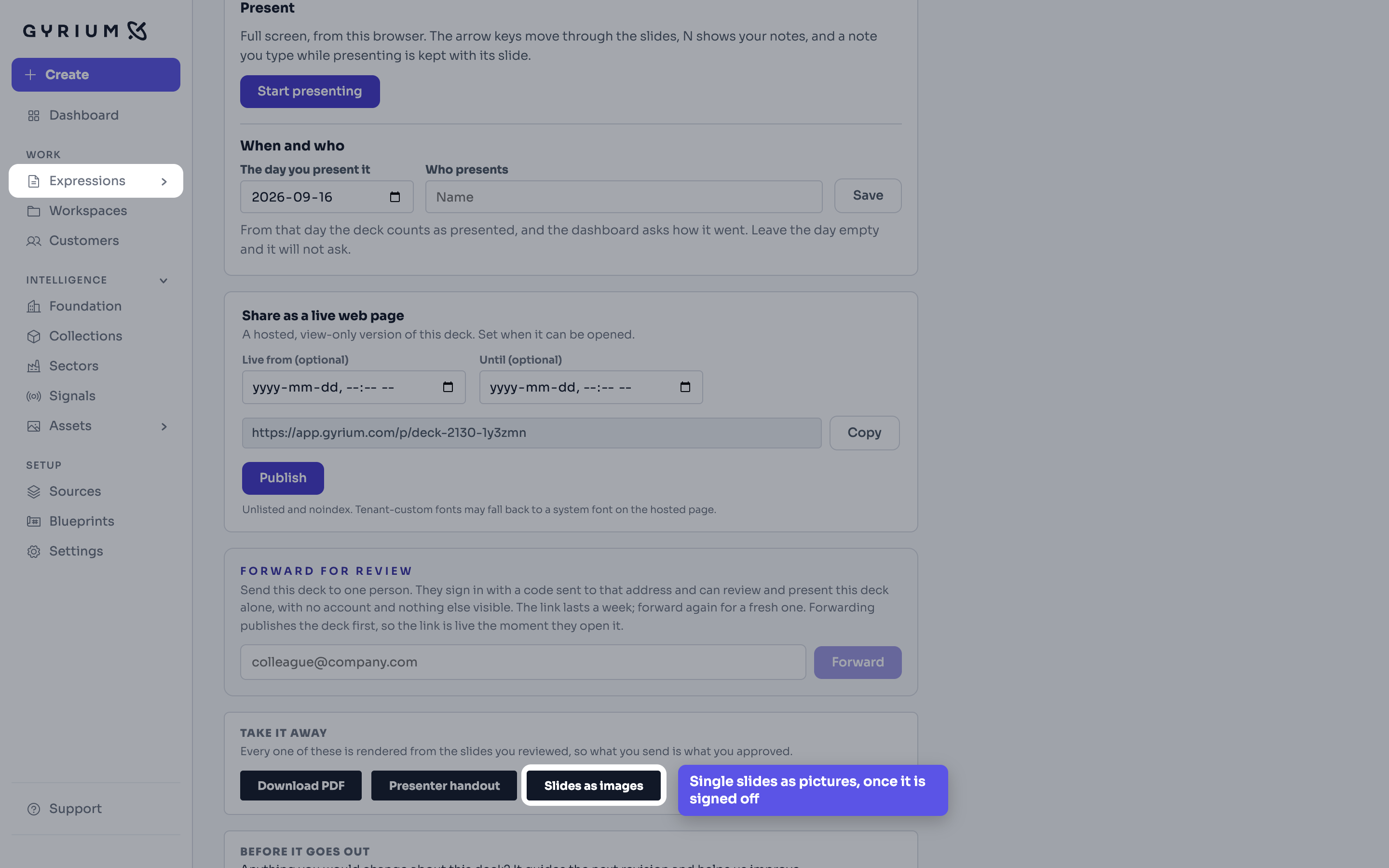
- Pull single slides out as images whenever you need them. Before the sign-off they are working copies, like every other export.
- Take a document as a PDF, or as a Word file when someone needs to edit it. The Word file carries the words, headings, tables and pictures in plain styling.
- Download a web page as HTML to host it yourself, or an email as HTML for the tool you send with.
- Download a social post as a ZIP file holding every image and a text file with the caption, the hashtags and the alt text.
What this uses
Brand System & Render Engine
It doesn't export, it renders. Everything you make is assembled from your knowledge and rendered in your design system, element by element.
Expressions
The work you actually ship. An Expression is a rendered view of your intelligence, in your brand.
Social
Social posts composed as designed scenes, with figures, charts and logos drawn in your brand, and channel-native captions and alt text.
Filing and share links
Every Expression files itself by context and names itself properly, and shares as a read-only, on-brand link you can revoke.