Set your graphic style

Colours, type, logo, and how imagery is treated.

In a pilot, we set this up with you. Send us what you already have and we build your foundation together. This guide is for when you want to add more yourself. Apply for the pilot

01Why it is worth doing

A brand applied by hand is a brand applied inconsistently. Held here, the system applies it, so nobody has to remember it and nobody can forget.

02How you get there
  1. Add your colours, and say what each one is for, so the choice is settled once.
  2. Choose your typefaces for headings and for body text.
  3. Upload your logo and its mark, and choose which one covers and headers wear, and how large.
  4. Decide which of your colours each element takes: titles, headings, body text, labels and figures, on light, dark and branded grounds. Slides, documents, emails and social posts follow it.
  5. Set how buttons look, once, for every web page, email and social post.
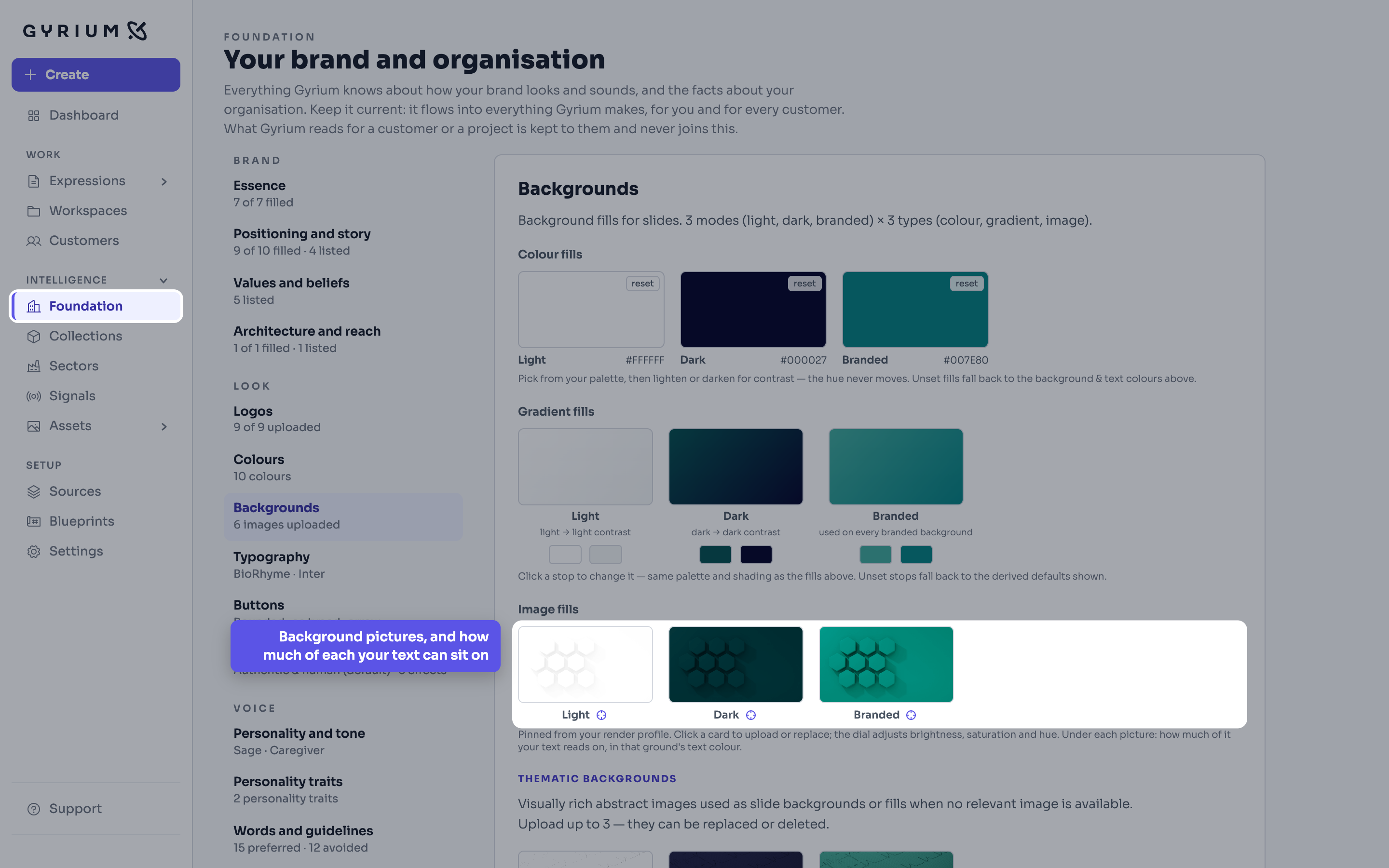
  6. Set how images are treated: backgrounds, effects, and the blend that makes a stock photograph look like yours. Each background picture shows how much of it your text can be read on.
  7. Everything you make comes out looking like this. Nobody applies the brand by hand, so nobody can forget to.
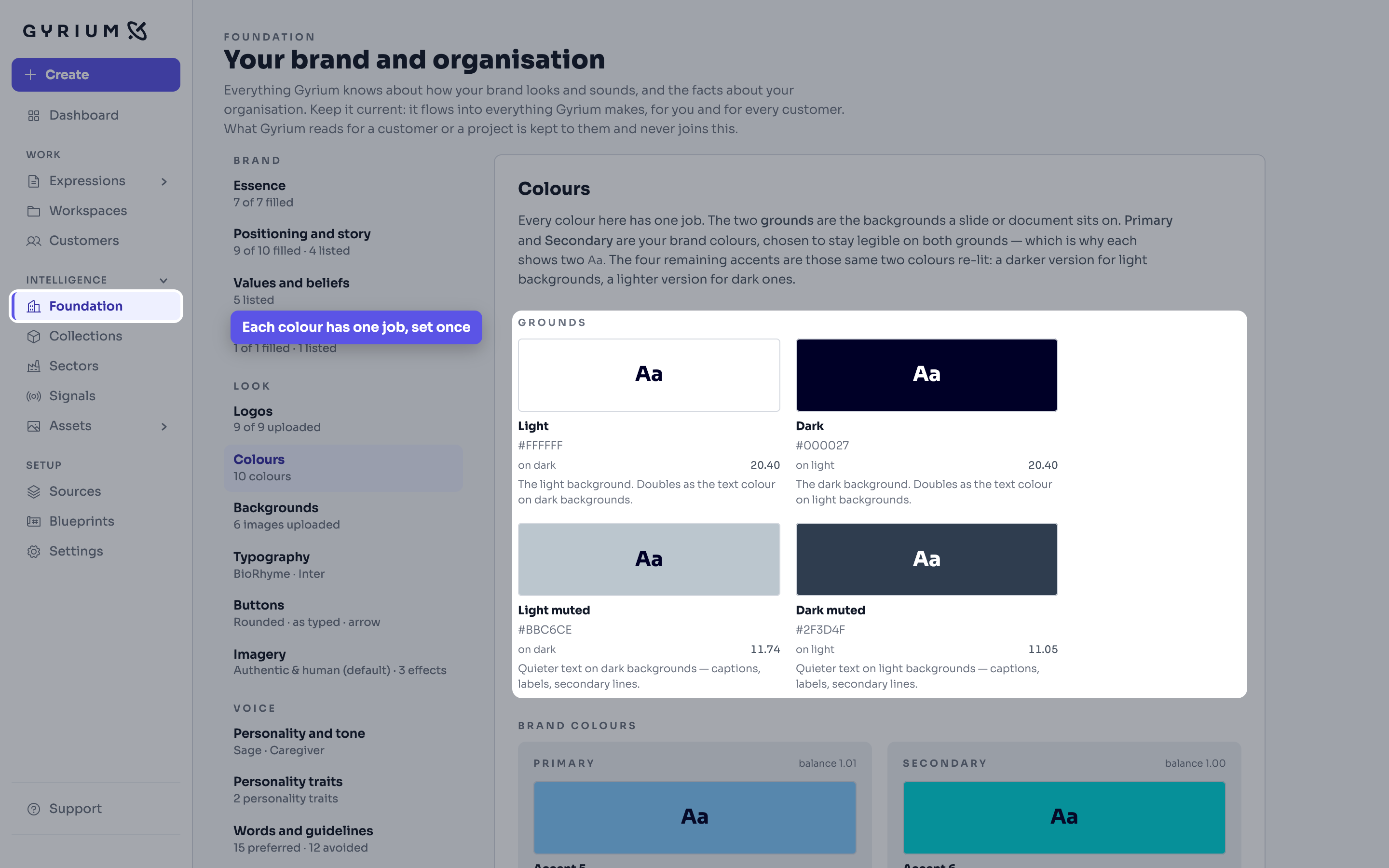
Gyrium, full screen with the menu on the left. Foundation is open on Colours. The Grounds block is picked out: light, dark, light muted and dark muted, each with its hex value, its contrast and what it is for. The callout reads: Each colour has one job, set once.
Step 1Foundation, Colours · The grounds, each colour with one jobDemo: a fictional cardiovascular research institute, with simulated figures.
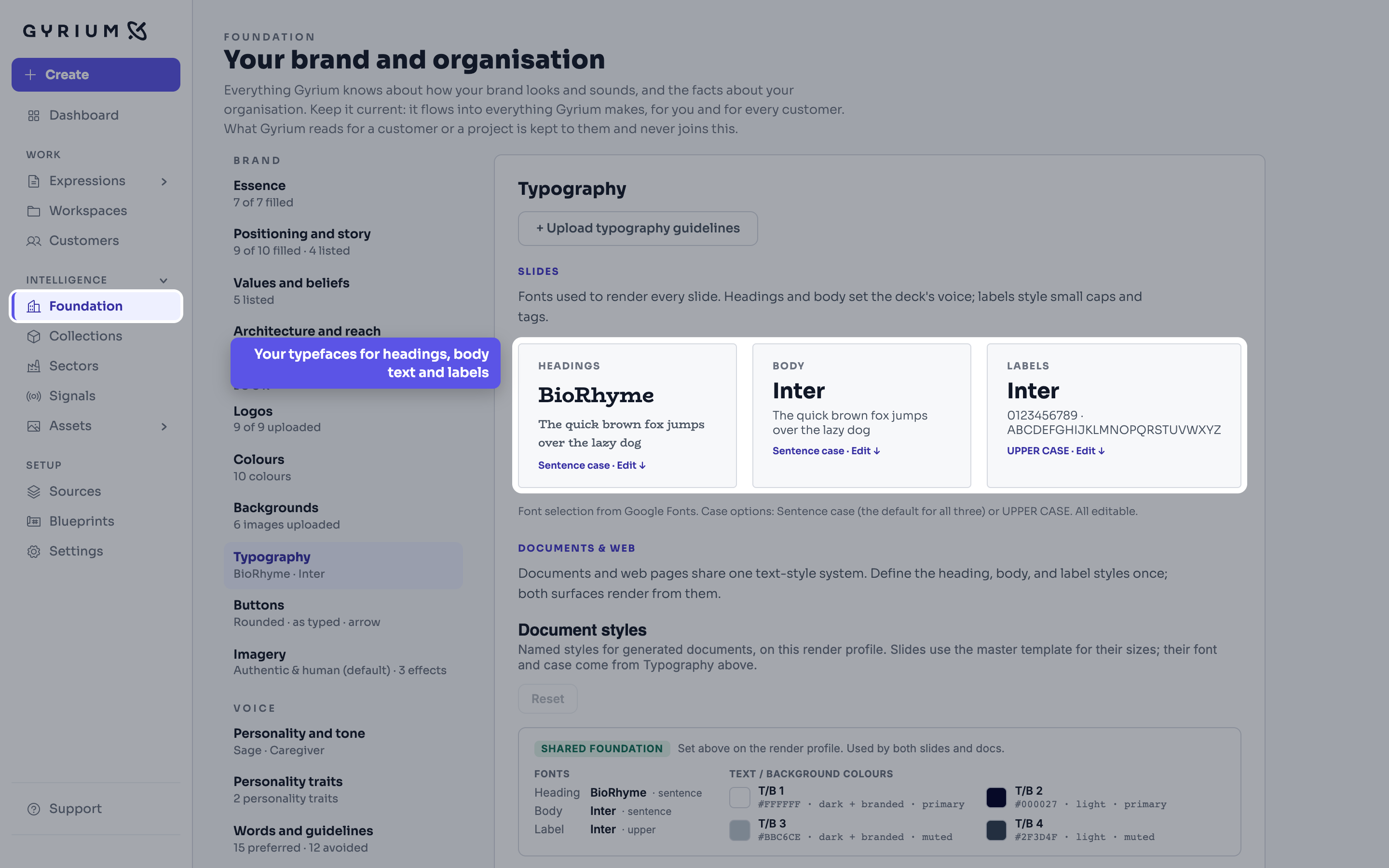
Gyrium, full screen with the menu on the left. Foundation is open on Typography. Three cards are picked out: Headings in BioRhyme, Body in Inter and Labels in Inter, each with a sample line. The callout reads: Your typefaces for headings, body text and labels.
Step 2Foundation, Typography · Heading, body and label typefacesDemo: a fictional cardiovascular research institute, with simulated figures.
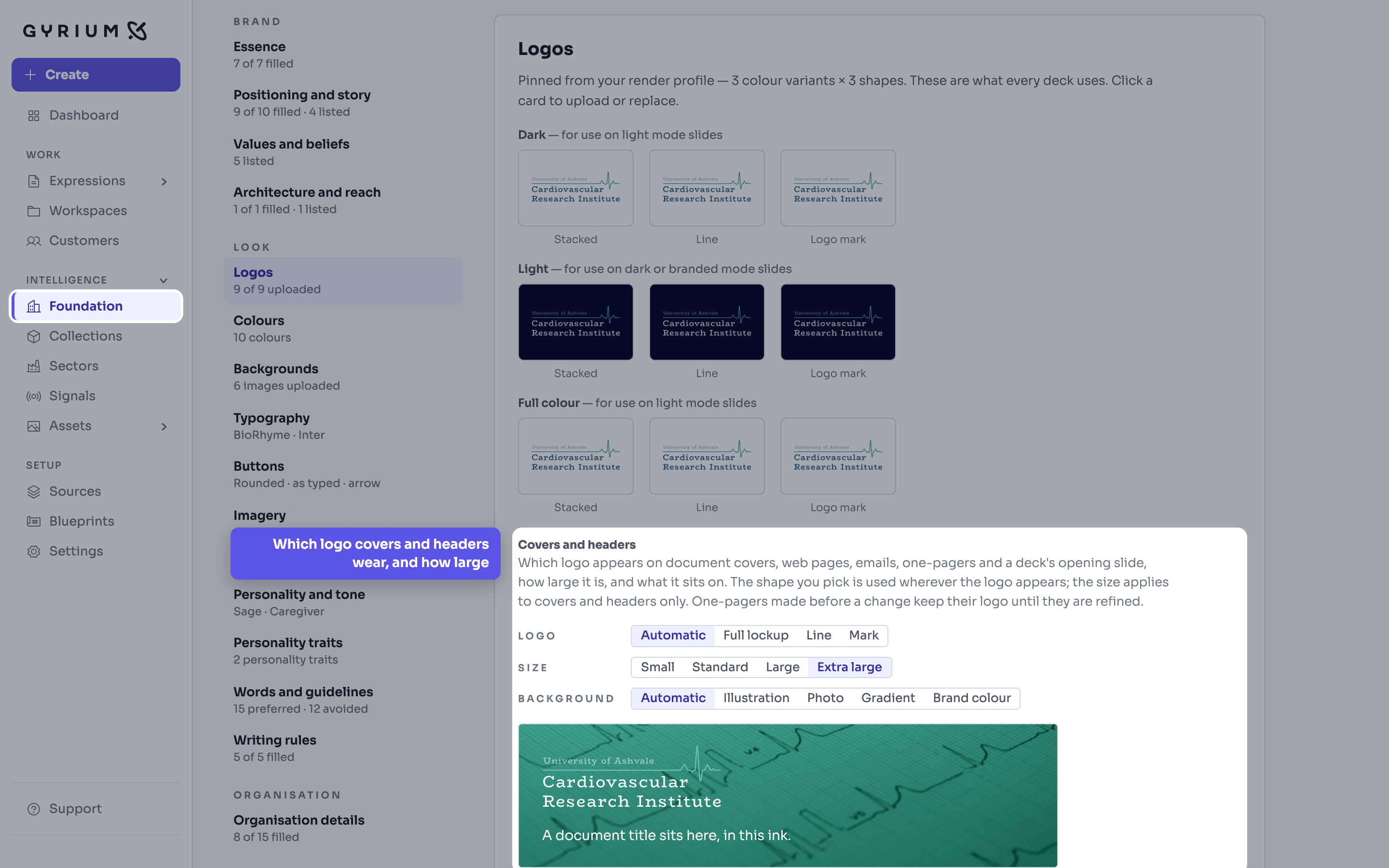
Gyrium, full screen with the menu on the left. Foundation is open on Logos, with the logo set in dark, light and full colour. The Covers and headers block is picked out, with choices for which logo, its size and what it sits on, and a preview of a cover. The callout reads: Which logo covers and headers wear, and how large.
Step 3Foundation, Logos · Covers and headersDemo: a fictional cardiovascular research institute, with simulated figures.
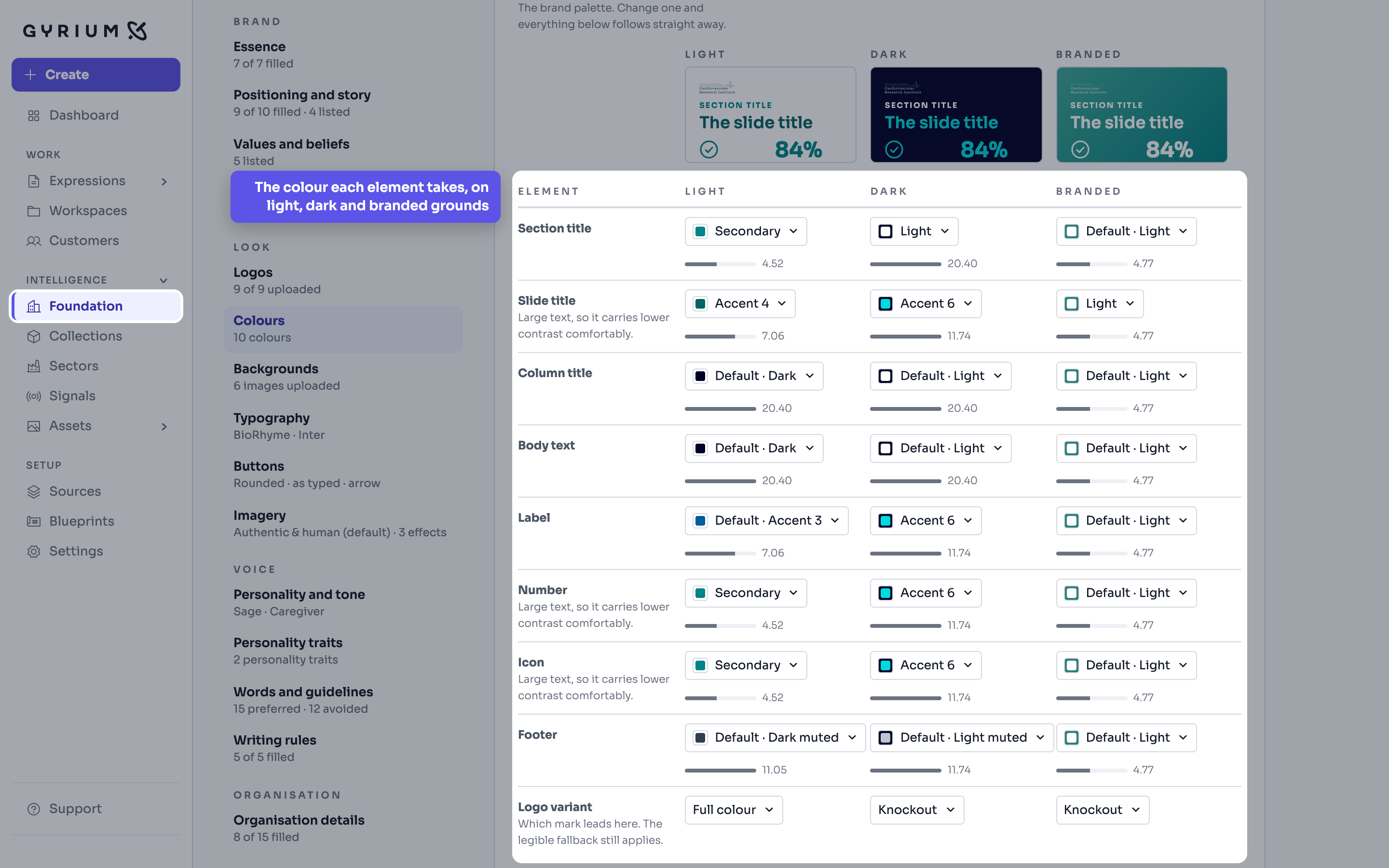
Gyrium, full screen with the menu on the left. Foundation, Colours, scrolled to Colour usage. The table is picked out: section title, slide title, column title, body text, label, number, icon, footer and logo, each set for light, dark and branded grounds with a contrast reading. The callout reads: The colour each element takes, on light, dark and branded grounds.
Step 4Foundation, Colours, Colour usage · What colour each element takesDemo: a fictional cardiovascular research institute, with simulated figures.
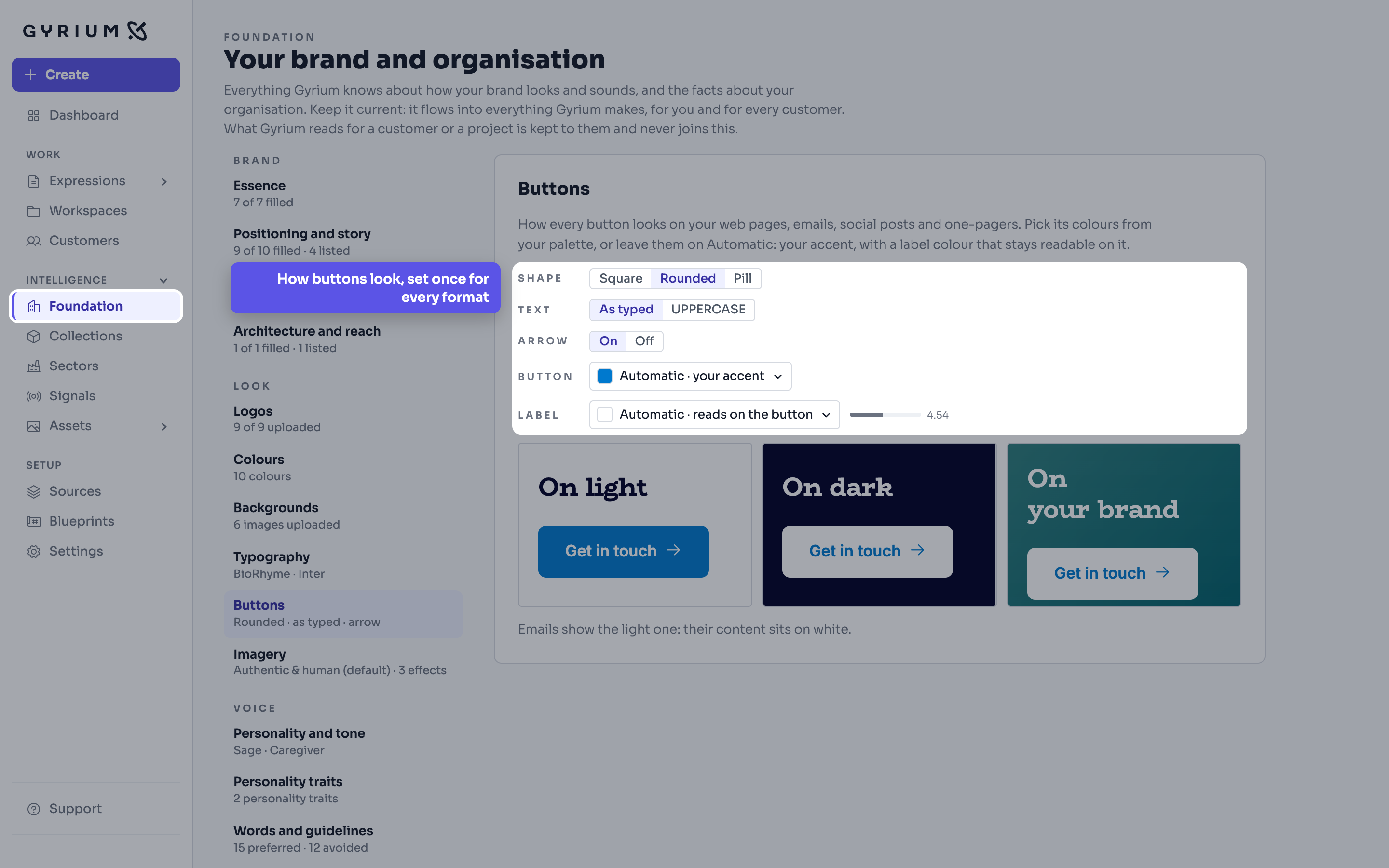
Gyrium, full screen with the menu on the left. Foundation is open on Buttons. The settings are picked out: shape, text case, arrow, button colour and label colour, above previews of the button on light, dark and brand grounds. The callout reads: How buttons look, set once for every format.
Step 5Foundation, Buttons · Button shape, text, arrow and coloursDemo: a fictional cardiovascular research institute, with simulated figures.
Gyrium, full screen with the menu on the left. Foundation is open on Backgrounds. The three image fills for light, dark and branded slides are picked out, each with a dial. The callout reads: Background pictures, and how much of each your text can sit on.
Step 6Foundation, Backgrounds · Image fills and their reading dialDemo: a fictional cardiovascular research institute, with simulated figures.
What this uses

See it hold your own work.

The pilot takes a small number of organizations at a time. Bring what you already have.