Present it yourself

Full screen for the room, your notes on your own laptop, and a notepad for what the room asks.

01Why it is worth doing

The room is the highest-stakes place your work ever appears, and the one place a file cannot help you.

02How you get there
  1. Open the finished deck and choose Start presenting. It asks for full screen, and the slide fills it: the room sees the work in your brand and nothing else.
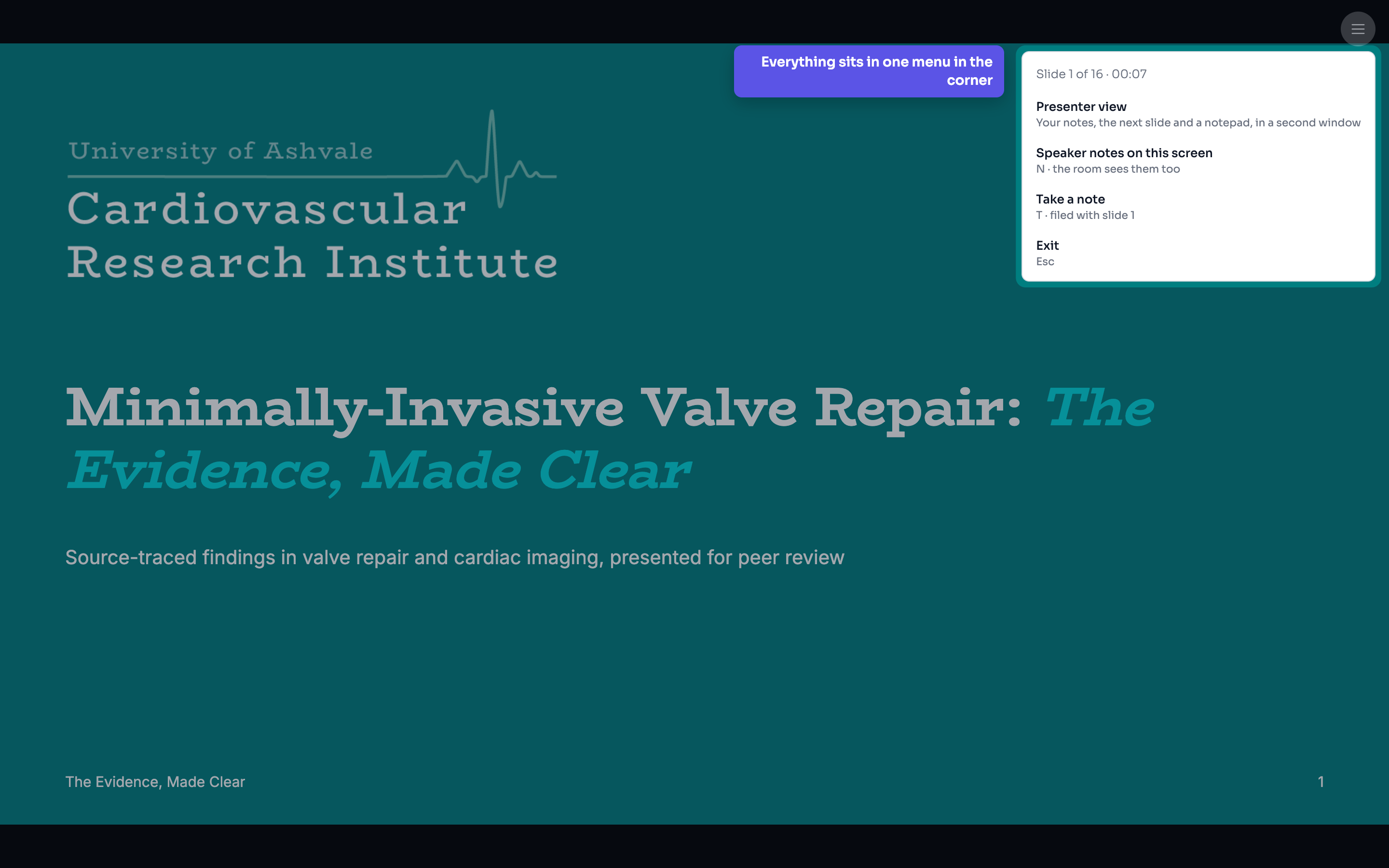
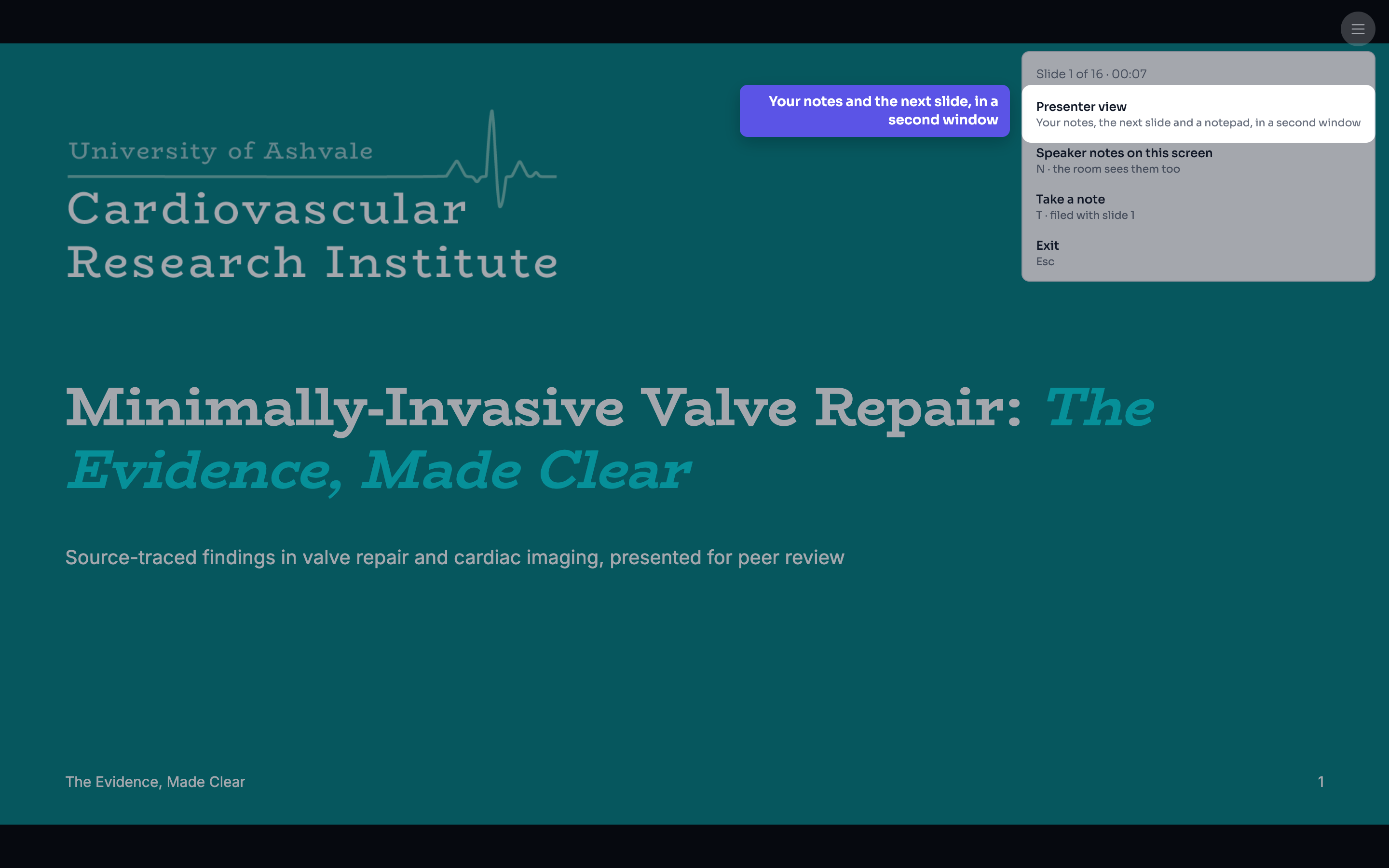
  2. The controls sit in one menu in the corner: the slide count and the time, the presenter view, your speaker notes, a notepad, and the way out. It hides when you stop moving the pointer.
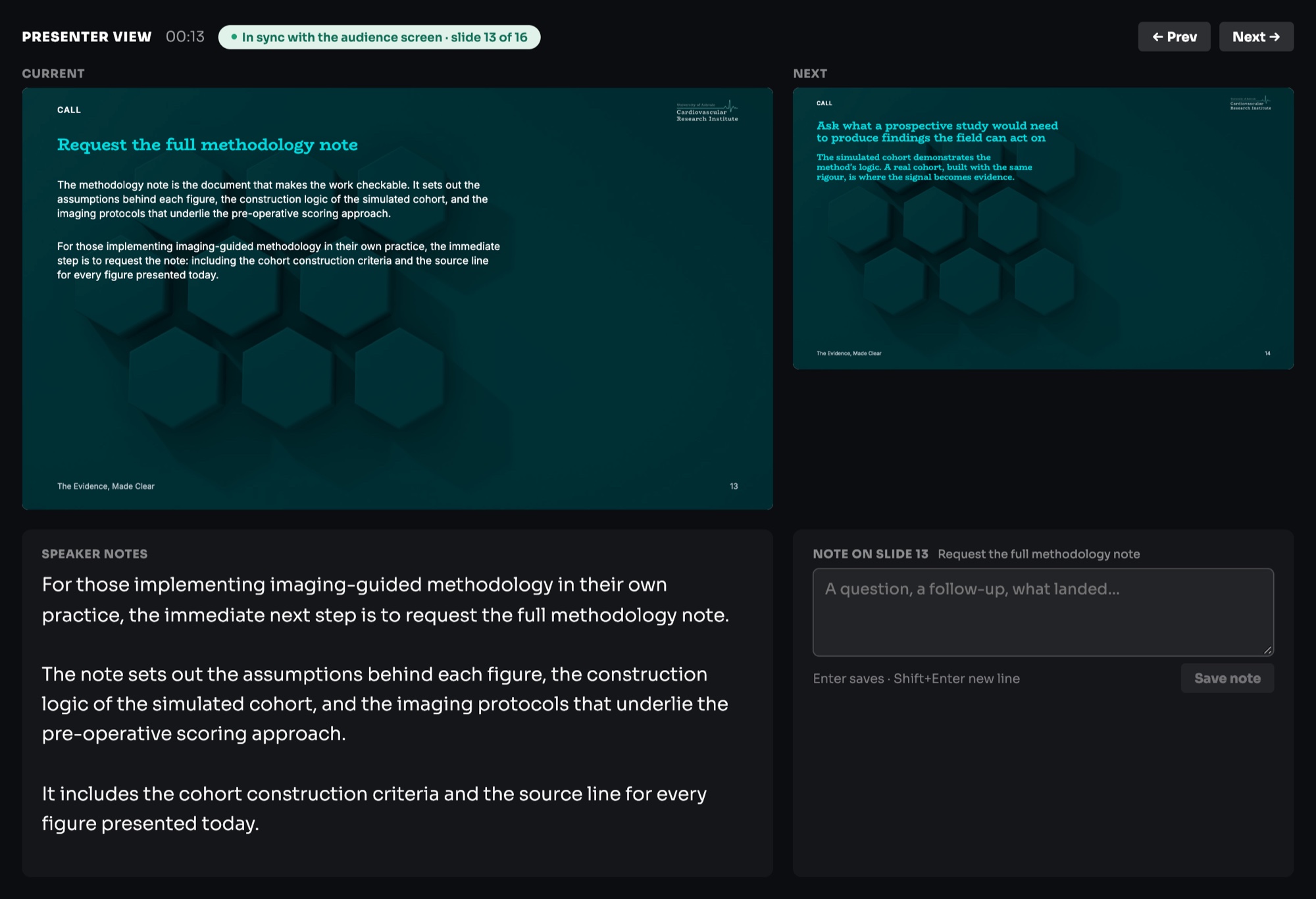
  3. Open the presenter view in a second window: your speaker notes, the slide coming next, and the sources behind the one you are on. Its header says it is in sync with the audience screen and which slide the room is on, and the notes scroll in their own box.
  4. The arrow keys move both windows at once. The room sees only the slide.
  5. Share the audience window, and keep the presenter window on your own screen.
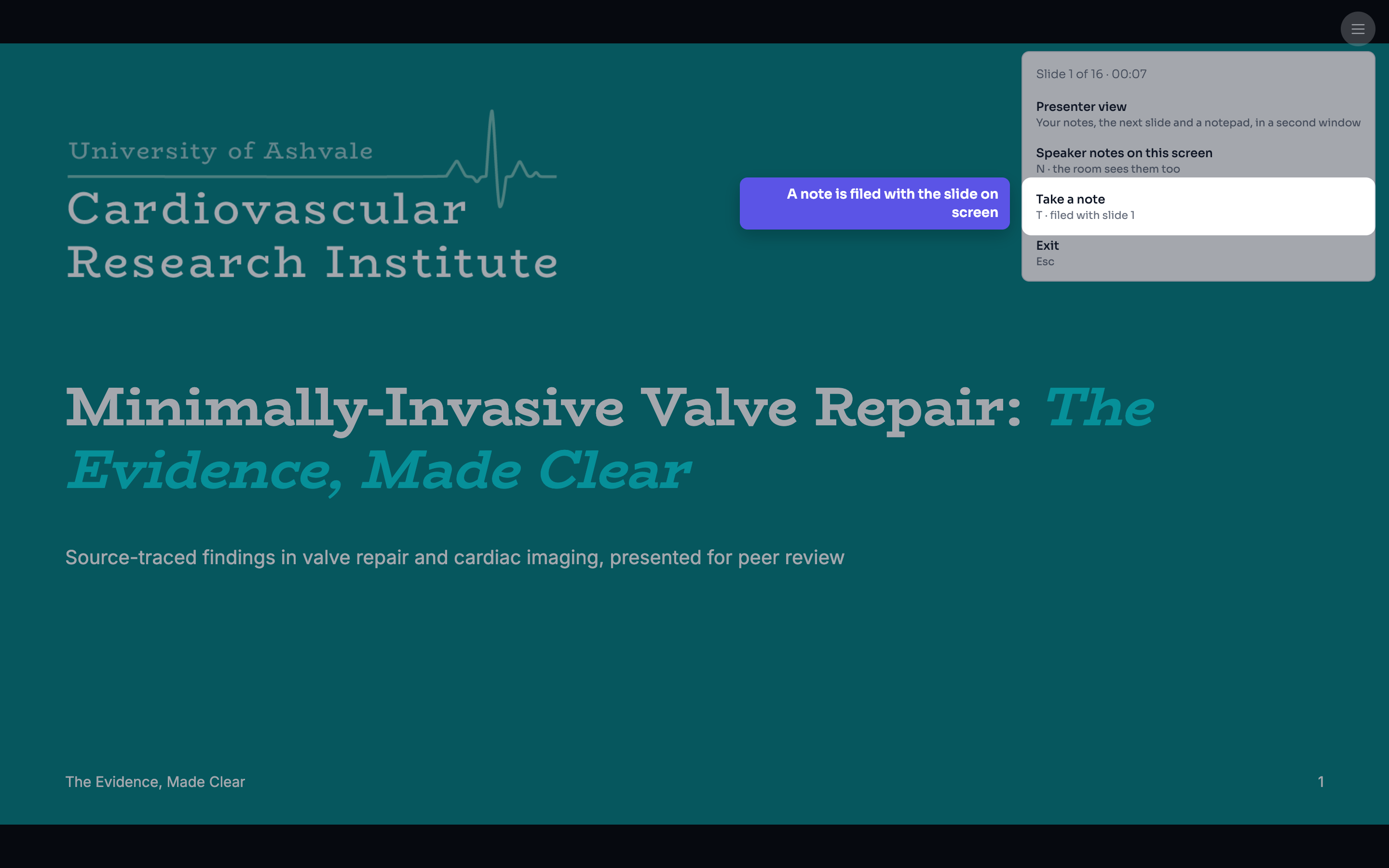
  6. Take notes as you go, from the menu or with the T key. Each note is filed with the slide that was on screen when you started typing, so a question from the room stays with the slide it was about.
  7. Afterwards, the deck's review shows them under Notes from presenting, grouped by each time you presented and naming each slide as it was shown. Jump to the slide, or tick a follow-up done.
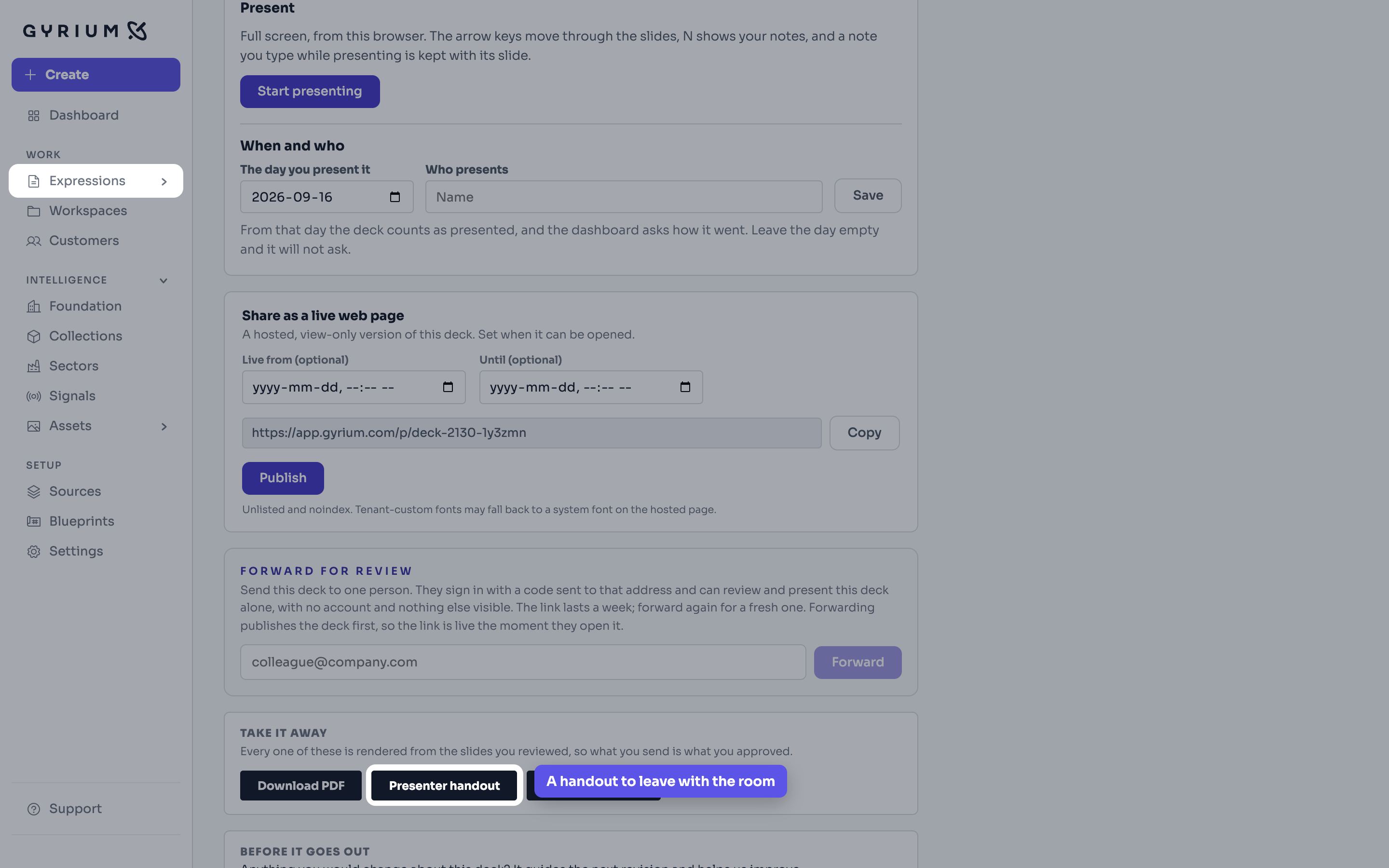
  8. Take a handout with you if the room wants something to keep.
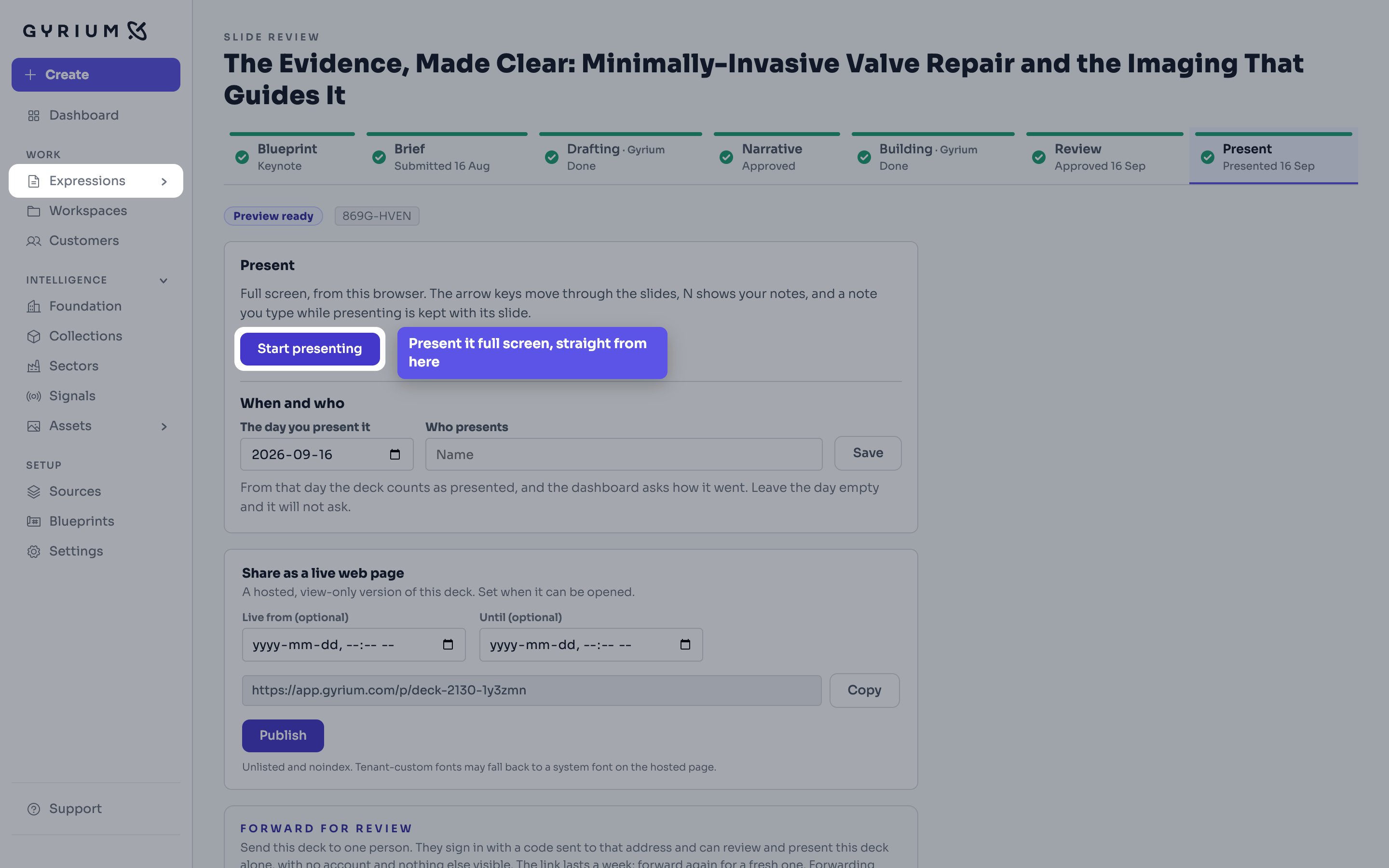
Gyrium, full screen with the menu on the left. An approved deck on its last step, Present. The Start presenting button is picked out. The callout reads: Present it full screen, straight from here.
Step 1A deck, Present · Start presentingDemo: a fictional cardiovascular research institute, with simulated figures.
A deck presented full screen, showing its title slide. The menu in the top corner is open and picked out: slide 1 of 16 and the time, Presenter view, Speaker notes on this screen, Take a note and Exit. The callout reads: Everything sits in one menu in the corner.
Step 2Presenting, the menu · The one menu in the cornerDemo: a fictional cardiovascular research institute, with simulated figures.
A deck presented full screen with its menu open. The Presenter view item is picked out: your notes, the next slide and a notepad, in a second window. The callout reads: Your notes and the next slide, in a second window.
Step 3Presenting, the menu · Presenter viewDemo: a fictional cardiovascular research institute, with simulated figures.
The presenter window. Its header reads In sync with the audience screen, slide 13 of 16, beside a running timer and Prev and Next buttons. Below it, the slide showing now and the slide that comes next, then the speaker notes in a box of their own and a notepad headed Note on slide 13.
Step 3Presenter view, on your own screen · in sync with the room, with the notes in their own boxDemo: a fictional cardiovascular research institute, with simulated figures.
A deck presented full screen with its menu open. The Take a note item is picked out, with the hint T, filed with slide 1. The callout reads: A note is filed with the slide on screen.
Step 6Presenting, the menu · Take a noteDemo: a fictional cardiovascular research institute, with simulated figures.
Gyrium, full screen with the menu on the left. The last step of an approved deck, scrolled to Take it away. The Presenter handout button is picked out. The callout reads: A handout to leave with the room.
Step 8A deck, Present, Take it away · Presenter handoutDemo: a fictional cardiovascular research institute, with simulated figures.
Watch this step
See it done.

Presenting full screen, with the presenter window beside it and a note from the room kept for afterwards.

From the walkthrough, 14:22 to 16:18. The whole film, 18:20
What this uses

See it hold your own work.

The pilot takes a small number of organizations at a time. Bring what you already have.